 SDM Documentation
Standard Mode
Step 4: Preview Data
Review your data before publishing
Step 4: Preview Data
The preview step shows you exactly what will be published to Apple School Manager.
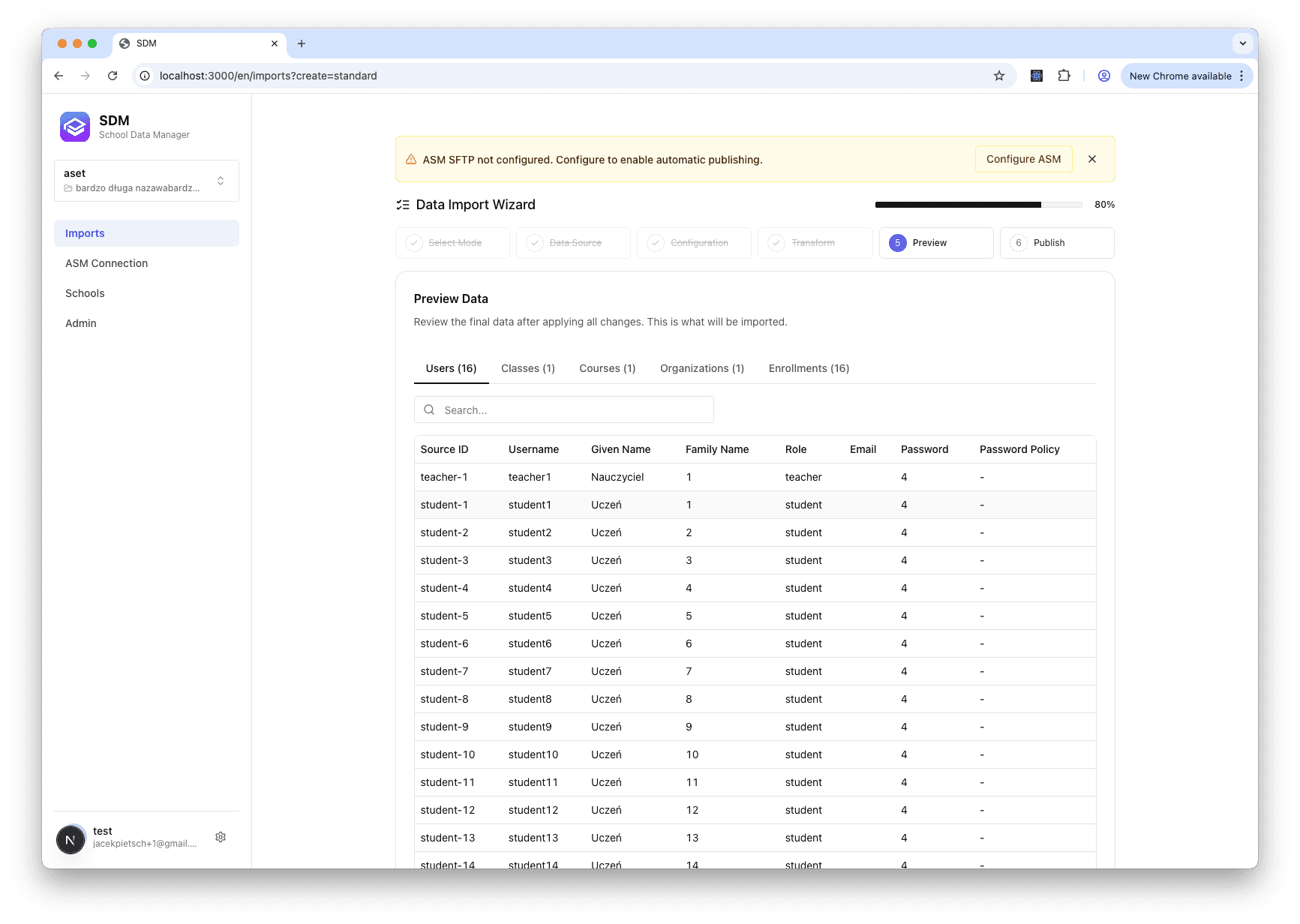
Generating the Preview
- Click Generate Preview
- Wait for data processing (progress shown in real-time)
- Review the results in the preview tabs
Preview Tabs
Classes Tab
View all classes that will be created:
- Class title and code
- Associated course
- Assigned instructors
- Student count
Users Tab
View all users (students and staff):
- Name and email
- Role (student, teacher, admin, aide)
- Grade (for students)
Validation Tab
View data quality results:
- Error count (must fix)
- Warning count (review)
- Click errors to see affected records
Making Corrections
- Click on any row to open the edit modal
- Make your changes
- Click Save
- The preview updates automatically
Validation Checklist
Before proceeding, verify:
- No validation errors (0 errors)
- Warnings reviewed and acceptable
- User emails are correct
- Class assignments look correct
- Expected number of records present
What's Next
Once satisfied with the preview, proceed to Step 5: Publish.