 SDM Documentation
Partners
Inviting Schools
Send invitation emails to schools
Inviting Schools
After creating a school, send an invitation to allow them to sign in.
Sending an Invitation
- Go to Partner Dashboard
- Find the school in the list
- Click Invite (or the invitation icon)
- Confirm the email address
- Click Send Invitation
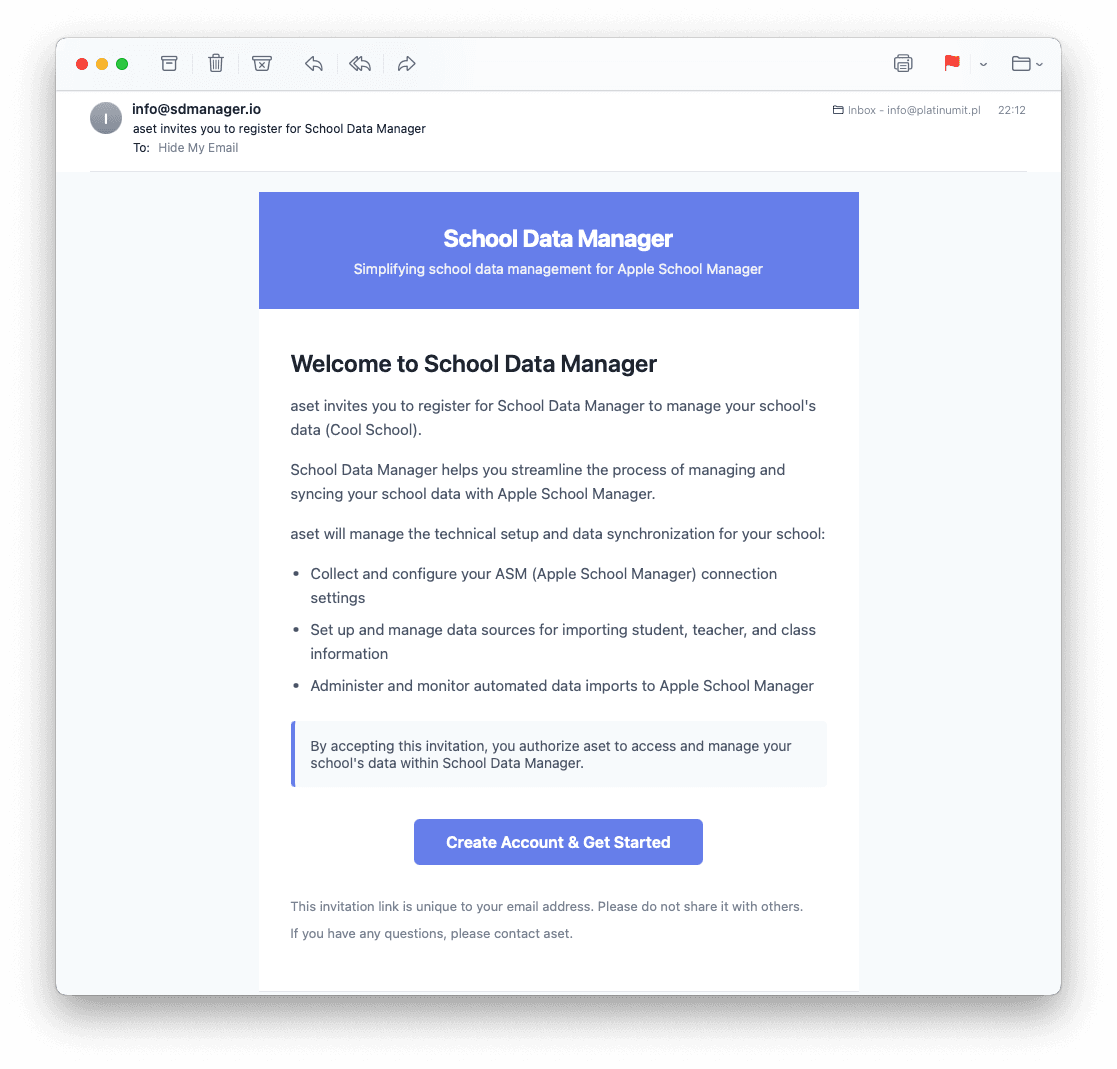
What Schools Receive
The invitation email contains:
- Welcome message from your organization
- Link to register/sign in
- Expiration notice (default: 7 days)
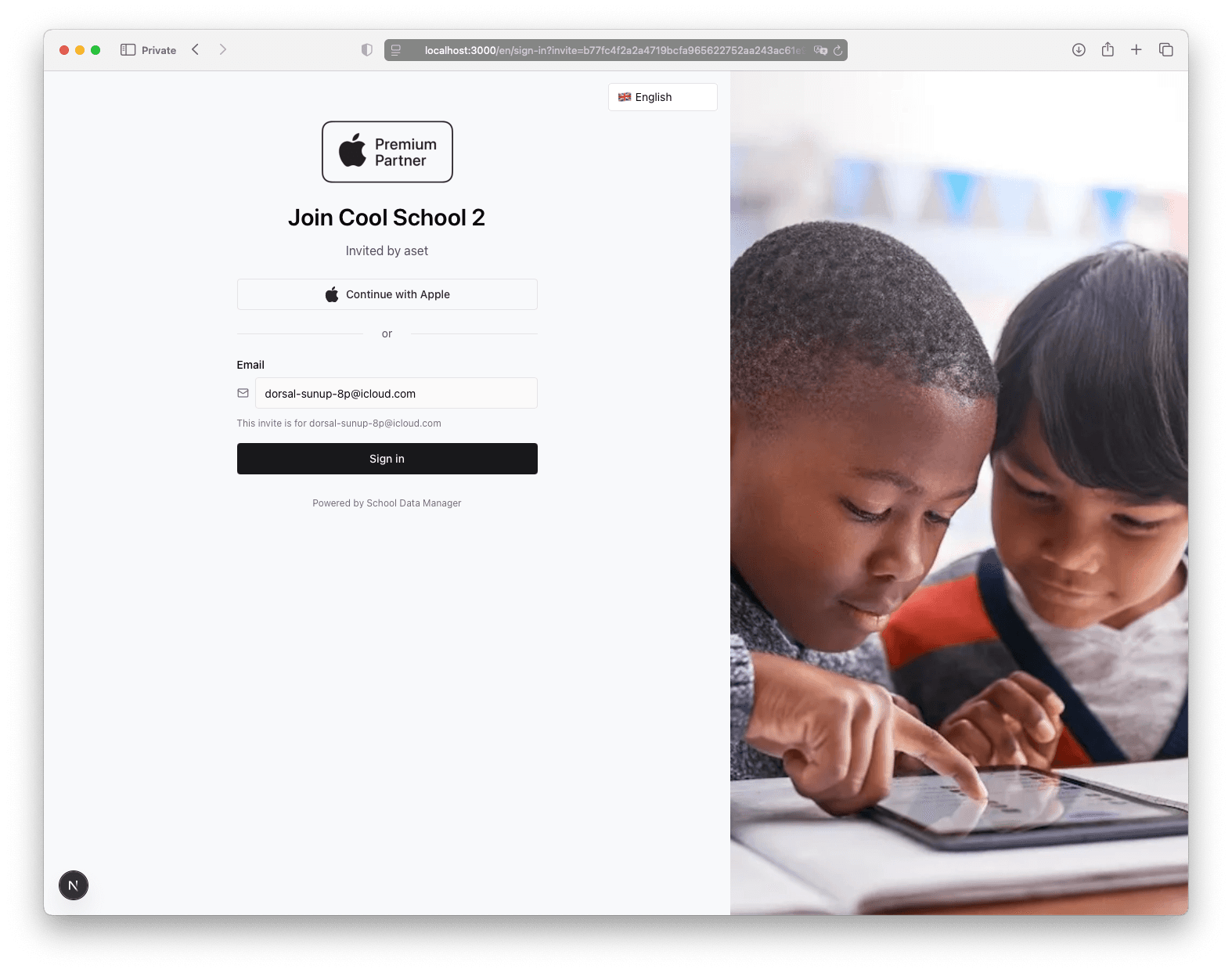
Invitation Login Page
When schools click the invitation link, they see a branded login page:
Invitation Status
| Status | Description |
|---|---|
| NEW | Not yet invited |
| PENDING | Invitation sent, not clicked |
| CLICKED | Link clicked, not registered |
| ACTIVE | Registration completed |
Resending Invitations
If invitation expires or is lost:
- Click on the school
- Click Resend Invitation
- New invitation is sent
Bulk Invitations
- Select multiple schools
- Click Bulk Actions > Send Invitations
- Confirm
- Invitations sent to all selected
Troubleshooting
Email Not Received
- Check spam folder
- Verify email address is correct
- Resend invitation
Link Expired
- Resend invitation for new link
- Default expiry is 7 days