 SDM Documentation
Common Features
ASM Connection
Set up your SFTP connection to Apple School Manager
ASM Connection
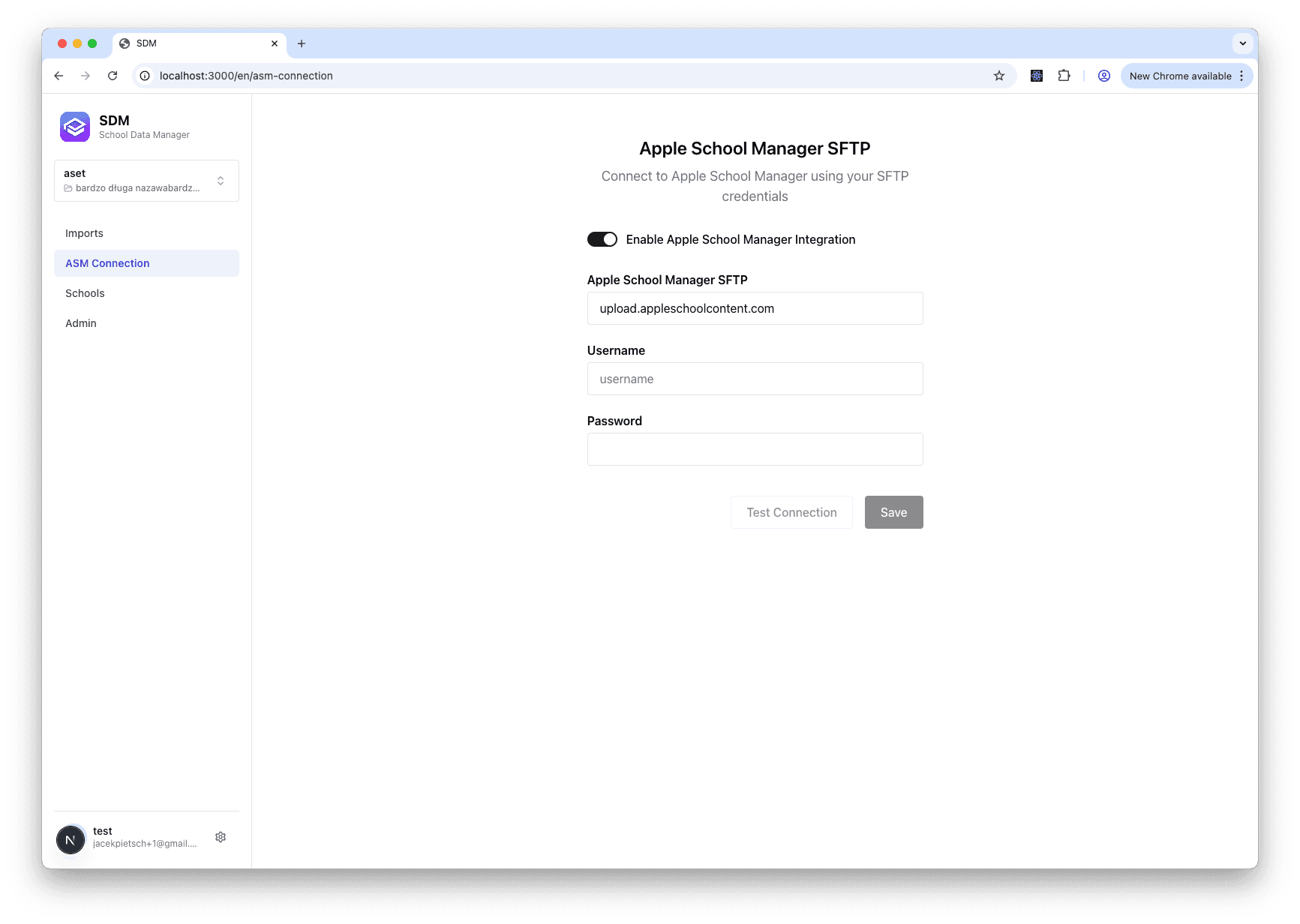
To publish data to Apple School Manager, you need to configure an SFTP connection with the credentials provided by Apple.
Prerequisites
Before setting up your connection, you'll need:
- SFTP Host - The SFTP server address from Apple (e.g.,
upload.appleschoolcontent.com) - Username - Your SFTP username from Apple
- Password - Your SFTP password from Apple
- Port - Usually
22(default) - Path - The upload directory path (optional)
Setting Up the Connection
- Navigate to ASM Connection in the sidebar
- Enter your SFTP credentials:
- Host (without
sftp://prefix) - Username
- Password
- Port (default: 22)
- Path (optional)
- Host (without
- Click Test Connection to verify your credentials
- Click Save to store the connection
Testing the Connection
The Test Connection button will:
- Attempt to connect to the SFTP server
- Verify your authentication credentials
- Check write permissions to the specified path
- Return a success or error message
Testing the connection does not upload any data. It only verifies that SDM can connect to Apple School Manager.
Troubleshooting
Connection Refused
- Verify the host address is correct
- Check that port 22 is not blocked by your firewall
- Ensure the SFTP service is enabled for your ASM account
Authentication Failed
- Double-check your username and password
- Verify your credentials haven't expired in Apple School Manager
- Ensure you're using SFTP credentials, not your Apple ID
Permission Denied
- Check the path is correct and exists
- Verify your account has write permissions
- Contact Apple support if the issue persists